Name the problem
Identify whether the photo is noisy, soft, too small, or physically damaged. Those problems call for different treatments, even when each is described as enhancement.
Before working on a photo, decide whether you need to improve that exact file or create a new image with a cleaner look. Vanceai searches can lead to different image tasks, and the route you choose matters more than a sharp-looking preview.
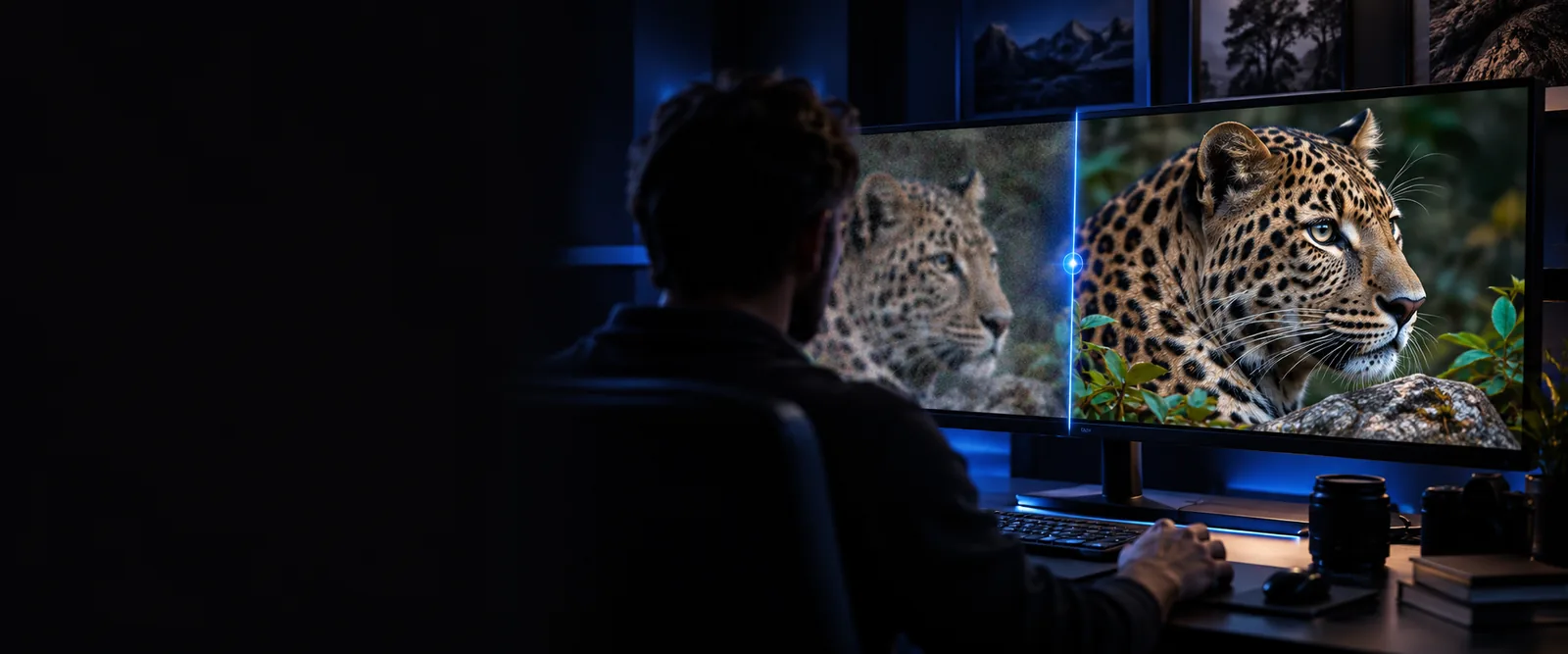
The useful question is not simply whether an enhancer is available; it is whether its access terms and output match the photo you need to finish.
Compare enlargement with enhancement before choosing a workflow for a small image.
Check what an online enhancement workflow involves when you want to work in a browser.
Explore restoration when an older photo has fading, scratches, or missing detail.
A cleaner-looking output can come from noise reduction, added edge contrast, or generated detail. None guarantees a more faithful record of the original scene.
If a face or sign is too blurred to read, enhancement may produce plausible-looking detail rather than recover what was actually there.
WorkaroundFind a higher-quality original before relying on the result for identification or transcription.
Strong edge contrast may add halos around hair, text, and high-contrast boundaries. A crisp preview is not proof of a usable full-size image.
WorkaroundInspect the same area at full size and keep the original for comparison.
A search for a free Vanceai enhancer does not establish current allowances, export rules, or whether a particular tool is available without payment.
WorkaroundRead the terms shown at the destination before uploading a photo or committing to a workflow.
Start with the desired outcome, then check what the tool actually accepts and returns.
Identify whether the photo is noisy, soft, too small, or physically damaged. Those problems call for different treatments, even when each is described as enhancement.
On the destination you choose, confirm the current terms and whether it accepts an existing file. A text prompt for a newly created image is not a substitute for editing your original.
Compare faces, lettering, and fine edges with the source at the size you actually need. Keep the unedited file so you can spot changes that look convincing but are inaccurate.
The right route depends on what must remain true to the source. These examples separate a presentable image from a faithful edit.
A thumbnail needs to appear larger on a page, but its source has few pixels.
Check enlargement separately from cleanup; upscaling cannot verify details that were never captured.
vanceai image upscaler freeA usable photograph needs modest cleanup without changing its subject.
Look for an existing-photo workflow and inspect its output rather than assuming an image prompt will edit the file.
vanceai image enhancer onlineAn old print has scratches and faded regions as well as softness.
Treat repair as a separate task, and retain a scan of the original as the historical record.
vance ai photo restorerThis distinction is especially important when following a Vanceai search to a different image tool. Confirm the destination's actual capabilities before supplying a file.
Existing-photo enhancement
An existing photograph to be changed
Prompt-based image creation
A written description of the image to create
Existing-photo enhancement
Improve the usability of the supplied photo
Prompt-based image creation
Produce a new image with a requested look
Existing-photo enhancement
Should remain tied to the original
Prompt-based image creation
Is not guaranteed to match an existing person or object
Existing-photo enhancement
Compare the output against the source
Prompt-based image creation
Compare the output against the prompt
Existing-photo enhancement
Artifacts or invented detail in the edited photo
Prompt-based image creation
A visually suitable image that is not a faithful edit
Existing-photo enhancement
The exact photograph must be retained
Prompt-based image creation
A newly created visual is acceptable
Vanceai-related searches often begin with an existing photo, but the linked image-creation route should not be mistaken for a confirmed photo enhancer. If a newly created image suits your project, start with a specific description; if the original must remain recognizable, verify an editing workflow first.
The search phrase alone cannot establish current access or export terms. Check the terms presented by the specific Vanceai tool before uploading an image or assuming that its output is available at no cost.
It may make some edges appear clearer, but severe blur can remove information that cannot be reliably recovered. Compare the output with the original, particularly around faces and text.
No. Enhancement generally aims to improve appearance, while upscaling aims to increase dimensions; a workflow may combine them, but a larger file is not automatically more accurate.
Not unless the destination explicitly supports editing an uploaded image. A text-only image-creation workflow can make a new visual with a similar description, but it should not be presented as an edit of your file.